wazuh-syscollector-inventory
📊 Collecting System Inventory with Wazuh Syscollector
A complete, practical guide for viewing system inventory, exporting reports, and querying via Dev Tools.
Wazuh Home · Wazuh Ambassador Program · Portfolio
📑 Table of Contents
- Introduction – Why system inventory matters
- How Syscollector Works
- Verification of Syscollector on Agents
- Explore Inventory in the Dashboard
- Querying Syscollector Data via Dev Tools
- Practical Example: Detecting Changes
- Conclusion
1. Introduction – Why system inventory matters
An accurate system inventory is one of the most fundamental components of cybersecurity.
Without visibility into what hardware, software, and processes are present in an environment, it’s nearly impossible to detect anomalies or respond effectively to threats.
The Syscollector module of Wazuh provides this visibility by automatically collecting:
- Hardware information
- Operating system details
- Installed software
- Running processes
- Open ports and network interfaces
This data gives security teams and administrators a baseline of their infrastructure.
Any unexpected changes, such as new software, suspicious processes, or new open ports, can be quickly identified and investigated.
In this tutorial, we will:
- Verify Syscollector configuration
- Explore inventory in the dashboard
- Access data via API
- Detect changes on endpoints
2. How Syscollector Works
Syscollector is part of the Wazuh agent, which runs on each endpoint (Linux, Windows, macOS).
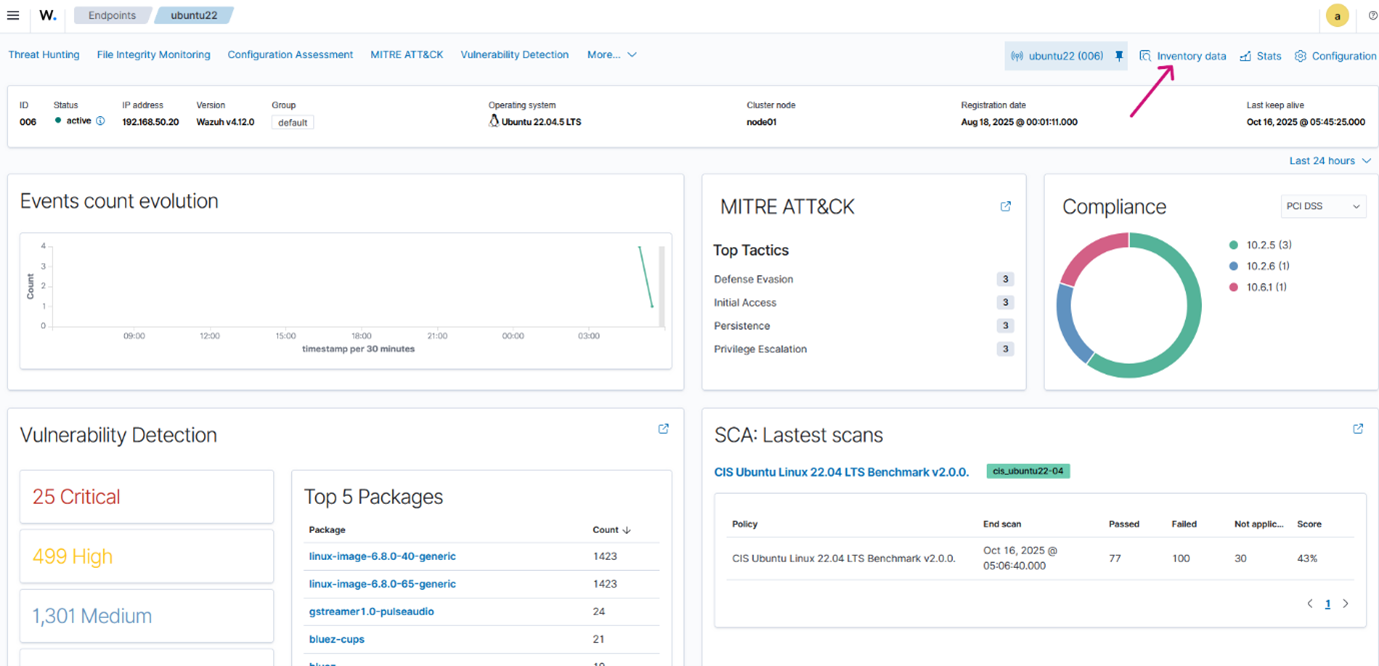
Figure 1: Syscollector runs on agents, collects system inventory, and sends it to the Wazuh server for visualization.
How it works:
- Each agent collects inventory information locally.
- This data is sent to the Wazuh server.
- It is then stored in the indexer and displayed in the Wazuh dashboard, where it can be filtered, analyzed, and exported.
This centralized view allows security teams to monitor multiple systems from a single dashboard.
3. Verification of Syscollector on Agents
Syscollector is enabled by default in Wazuh agents, but we can confirm this by checking the configuration file:
/var/ossec/etc/ossec.conf
Code Snippet 1: Full path of configuration file
Inside the file, look for the following section:
<!-- System inventory -->
<wodle name="syscollector">
  <disabled>no</disabled>
  <interval>1h</interval>
  <scan_on_start>yes</scan_on_start>
  <hardware>yes</hardware>
  <os>yes</os>
  <network>yes</network>
  <packages>yes</packages>
  <ports all="no">yes</ports>
  <processes>yes</processes>

  <!-- Database synchronization settings -->
  <synchronization>
    <max_eps>10</max_eps>
  </synchronization>
</wodle>
✅ This configuration shows Syscollector is:
- Enabled by default
- Runs every hour
- Scans on agent startup
- Collects full OS, hardware, network, packages, ports, and processes data
Restart the agent to trigger a fresh scan:
sudo systemctl restart wazuh-agent
4. Explore Inventory in the Dashboard
To quickly review or download the system inventory collected by Syscollector, use the Wazuh dashboard.
Steps:
- Go to
Agents→ Select Agent →Inventory - Explore different tabs:
- System → OS details, CPU, memory
- Software → Installed packages
- Processes → Running applications
- Export data:
- Export formatted → Download CSV
- Generate report → PDF
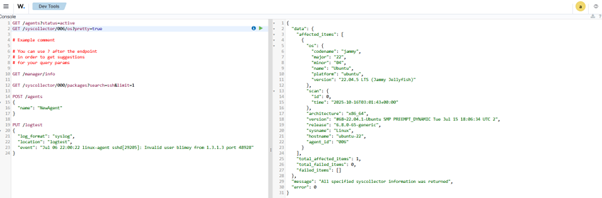
Figure 2: Inventory tab showing system details for a specific agent.
5. Querying Syscollector Data via Dev Tools
For more advanced use, Syscollector data can also be accessed through the Wazuh API using Dev Tools.
- Navigate to:
Server Management → Dev Tools - Run queries like:
GET /syscollector/006/os?pretty=true
Code Snippet 3: Request query from Dev Tools
You can replace os with:
packages→ Installed softwareports→ Open portsprocesses→ Running processes
This is especially useful for:
- Automation
- Integrations
- Deeper investigations
The JSON response will display detailed OS inventory information for the selected agent, including platform, version, architecture, and the last scan timestamp.
6. Practical Example: Detecting Changes
To demonstrate how Syscollector detects changes:
- Install a package on one agent.
- Syscollector will automatically detect it and display it in the Software tab.
- Uninstall the package and refresh the inventory view.
Note: Syscollector reflects system modifications based on the configured interval.
Ifscan_on_startis enabled, the changes appear sooner after a restart.
If the interval is long, it may take some time for updates to display in the dashboard.
7. Conclusion
Syscollector provides real-time visibility into system assets across all endpoints.
This visibility enables:
- 🚨 Faster detection of anomalies
- 🧾 Easier compliance reporting
- 🛡 Improved security monitoring and response
📥 Download the Full Tutorial (PDF)
🛰 Follow the Wazuh Weekly Tutorials
This guide is part of the Wazuh Weekly Tutorials series to help you implement and understand real security use cases.